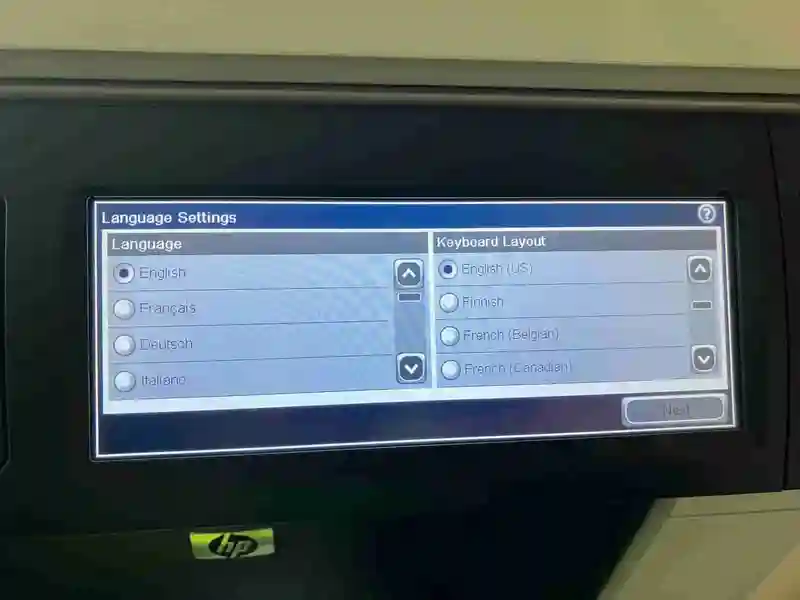
Replacing the disk in an HP M4555 Multi-function printer
If your HP M4555 MFP is starting showing Error: 99.09.64 Disk NonFunctional (or a similar 99.09.X code), you might need to replace the disk
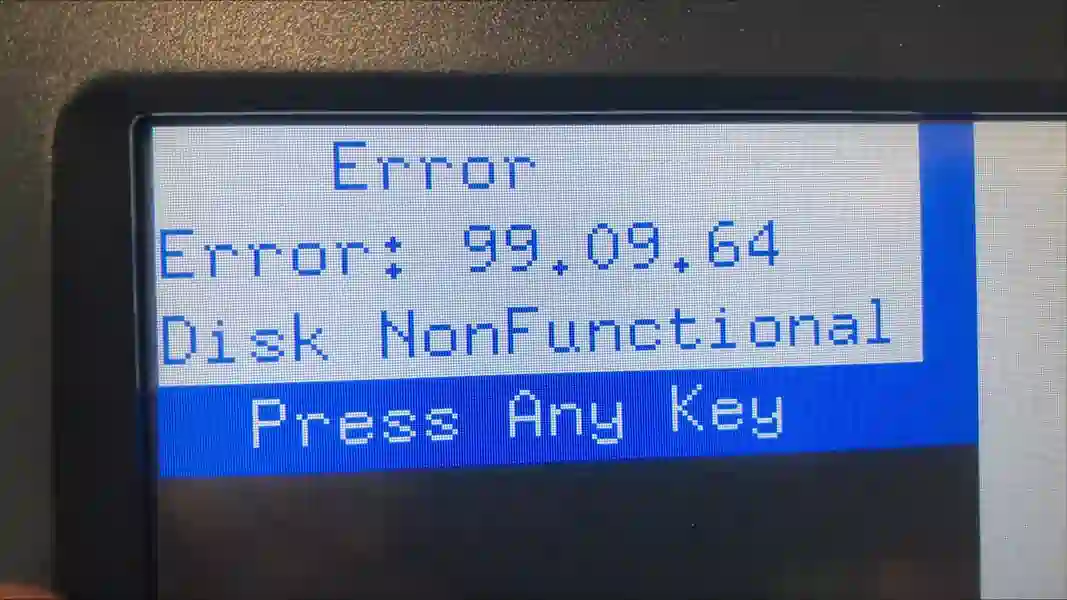
I've had to replace a few of these lately, so here's the step by step. The formatter board in this example is a CE502-60103.
You will need:
- A half-slim SATA drive, a high capacity drive likely won't work so stick with a 8-16GB drive
- USB Drive to load the firmware on from
- The firmware, available from HPs website
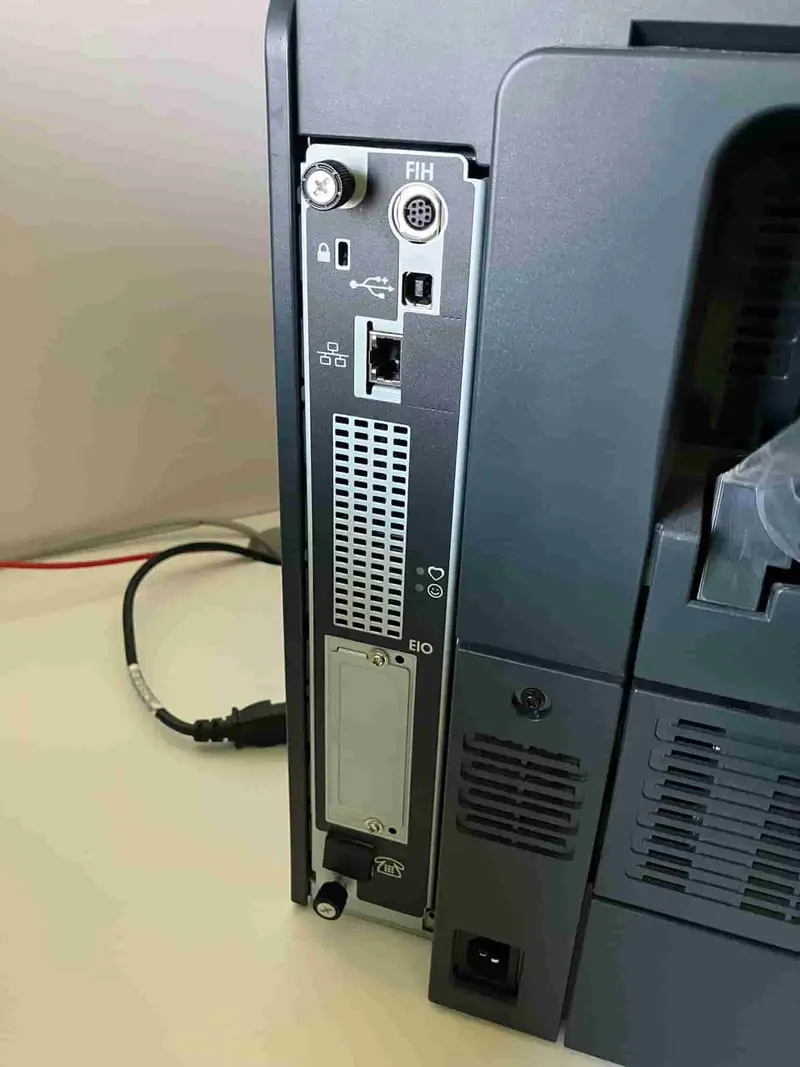
Remove the formatter board from the printer,undo the two thrumb screws and pull
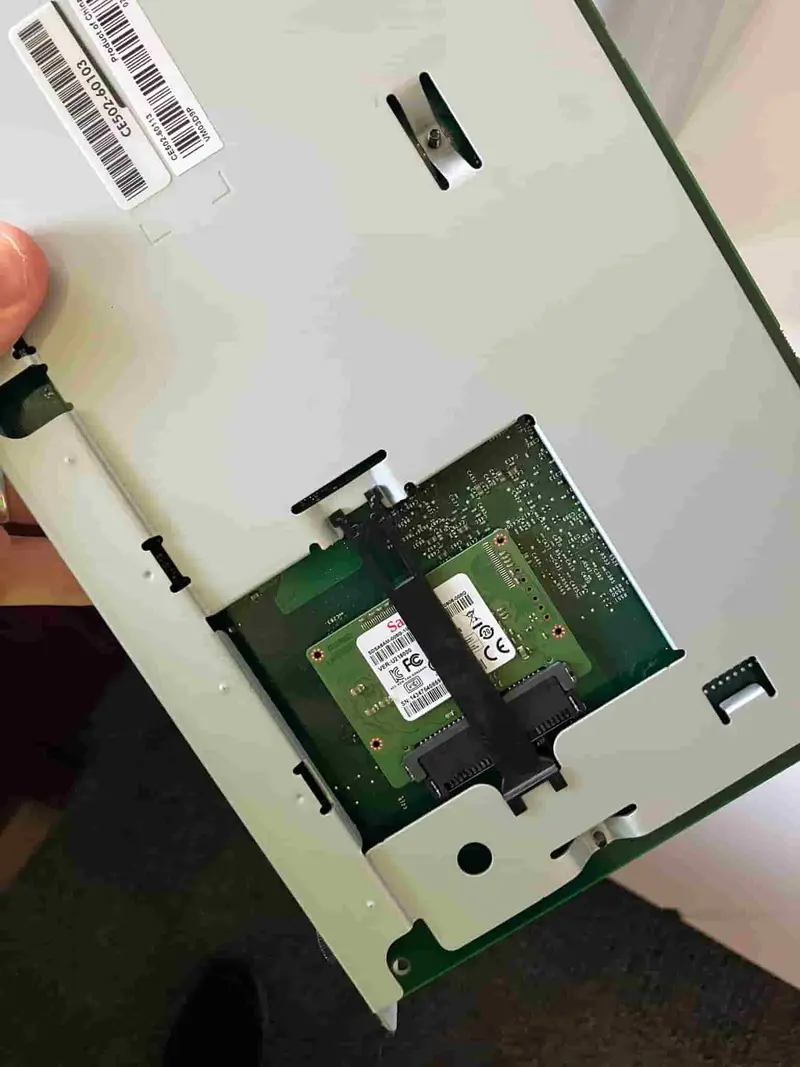
On the back side of the formatter board you'll find the disk, remove it and replace it with a low capacity (8-16GB) half-slim SSD
The firmware downloads as a ZIP file. Extract the file and put the .bdl file (ljM4555_fs3.9.12_fw_2309088_001471.bdl) at the root of the drive.
Now plug the USB drive into the USB on the formatter board, and reinsert the formatter board into your MFP
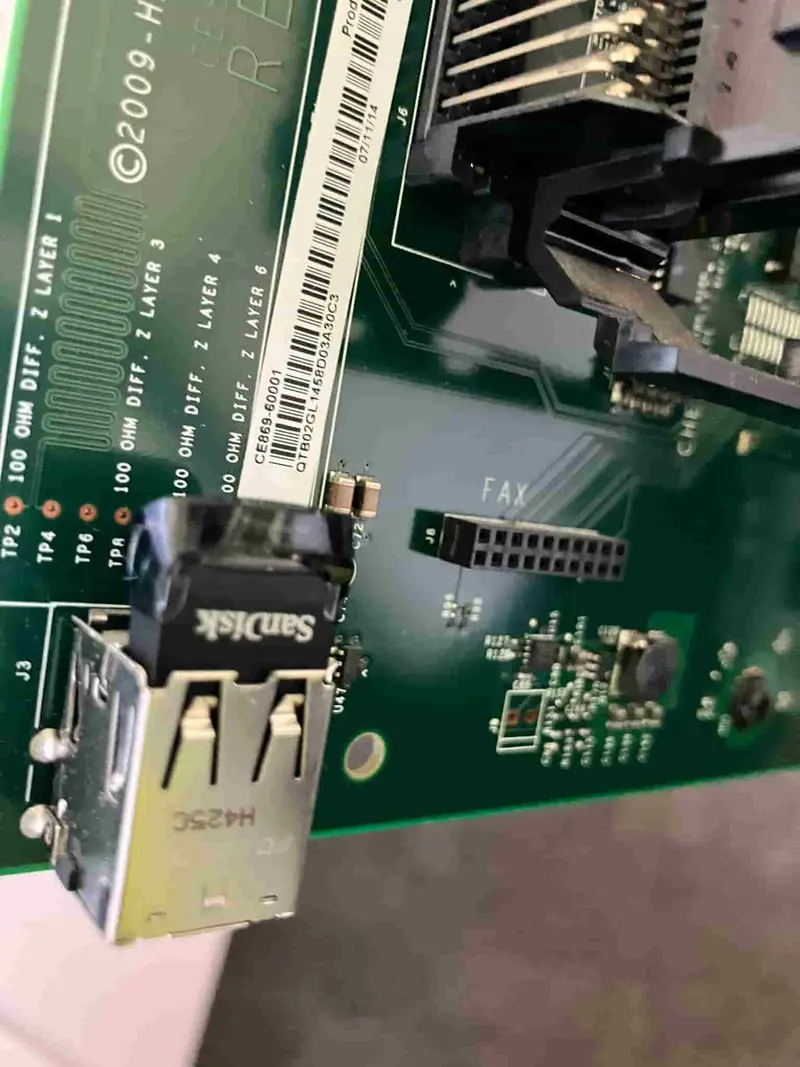
Turn on the printer and navigate to Administrator > Download > USB Thumbdrive
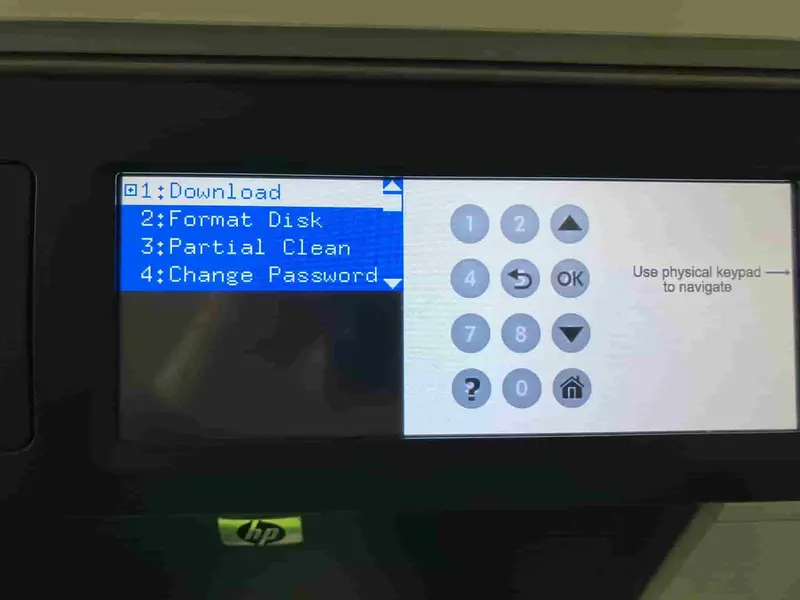
Once it has completed, navigate back the to base menu and press 'Continue' to start the printer. If it fails to boot, turn it off and repeat the process.
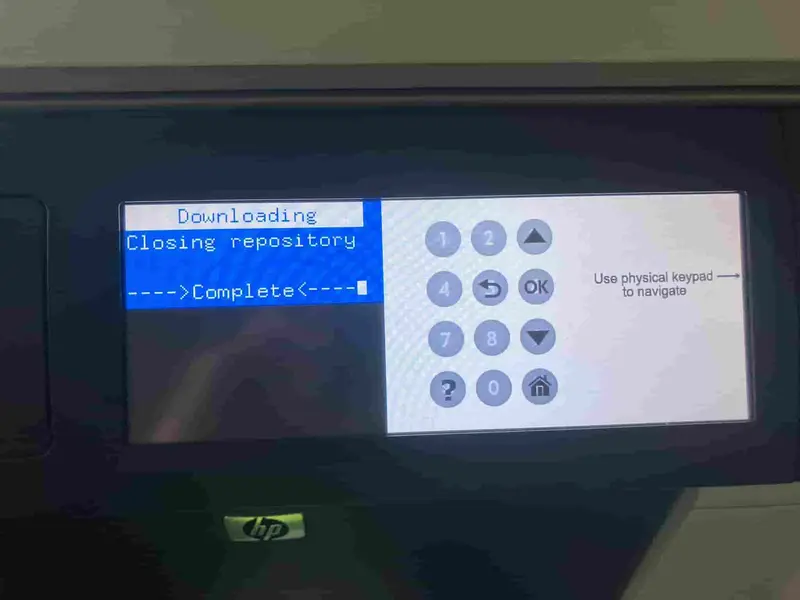
Once you get to the language selection screen you're done!